his article describes how to access an additional service not included in the OpenID standard to download the QR ID, if you do not use the automatic browser offered by B-FY.
In the OpenID request call, a pop-up window is executed in which the user identifies himself. This window is executed from B-FY independently. If it is desired from the client to show this QR in its own window, a service has been created to download this QR and show it to the user. The general identification flow is the same as described in the B-FY integration with OpenID.
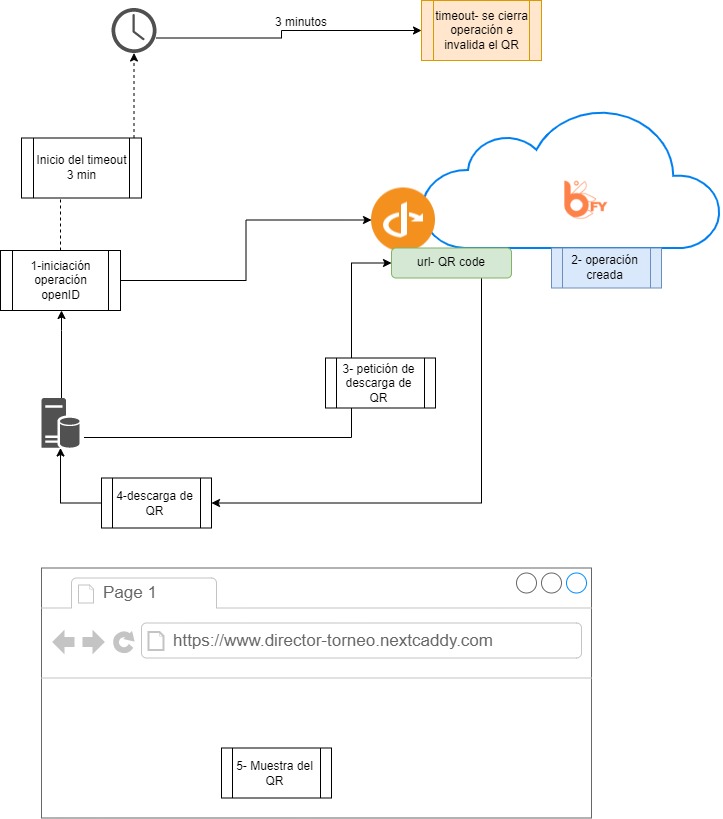
This service downloads the QR from an ongoing ID, which means that, in order to download the QR, the client first has to initiate an OpenID request. This generates a new OpenID operation in B-FY, where the popup window would normally be executed.
This operation has a general timeout and a specific timeout:
- General timeout- Each OpenID operation is valid for 3 minutes. After 3 minutes another OpenID operation has to be generated with a new state, generating all the necessary elements at the back.
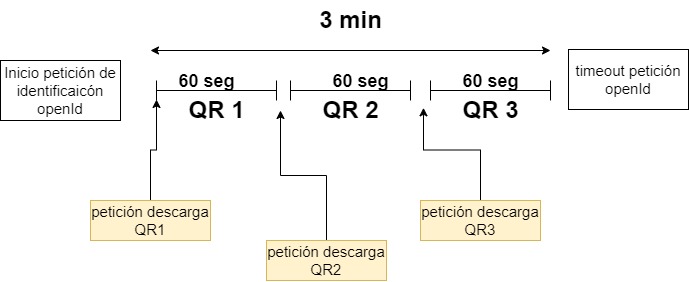
- QR timeout - For security reasons, the QR is generated dynamically and changes every 60 seconds. That is, after generating the identification operation, the QR to be shown to the user will last 60 seconds. After this time the new QR has to be shown to the user in order to complete the operation.
The QR service is linked to the OpenID request, i.e. it does not work autonomously. For the integration of this service, the integration with OpenID has to be performed. When this operation is integrated, the QR download can be integrated. The QR download without an active OpenID operation will not be able to operate.
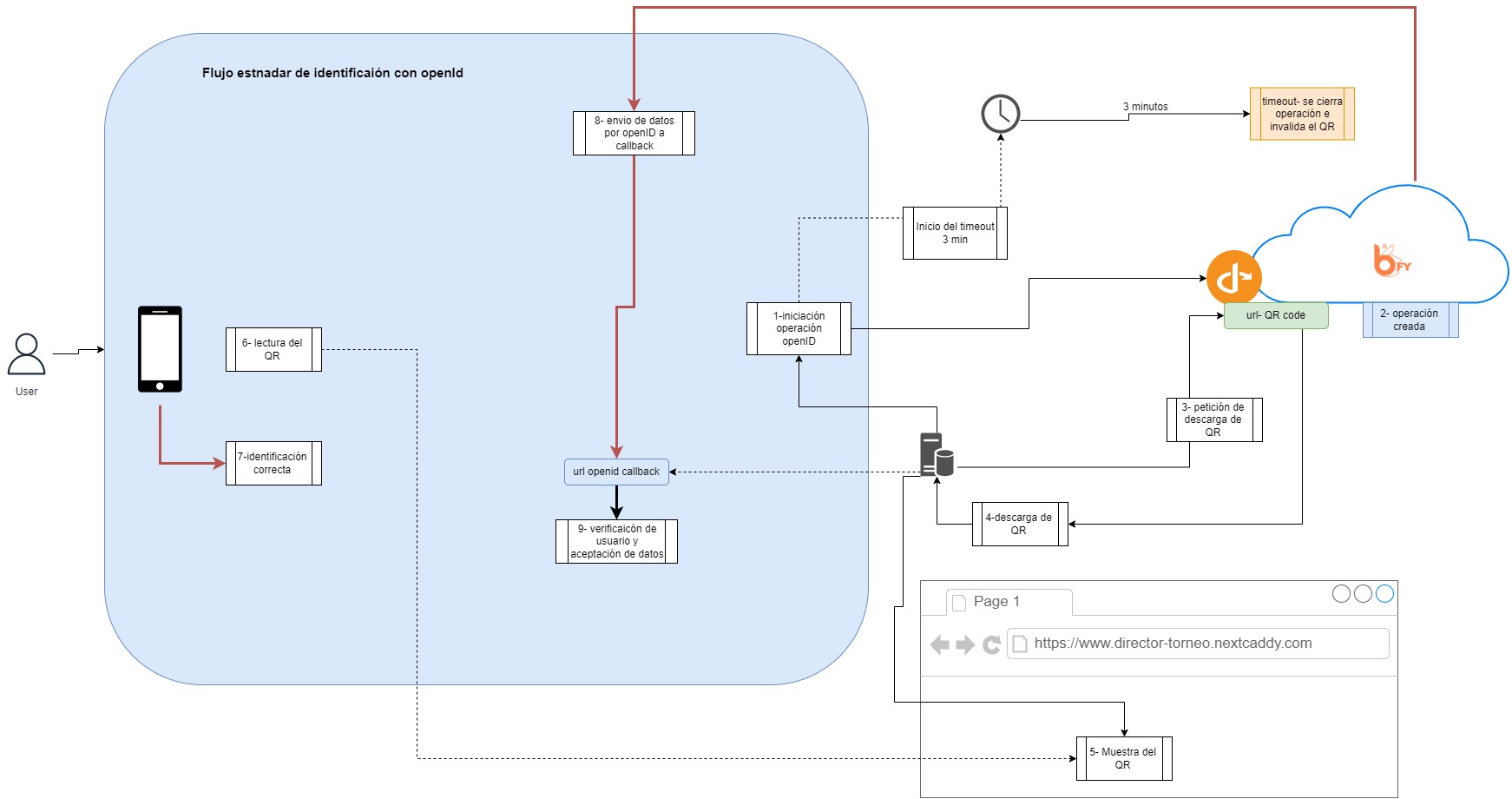
It must be executed in the same environment in which the OpenID call was executed. Normally from a browser it implies that the QR download request is launched from the same browser that launched the identification request.
In order to use this service, the following steps must be followed:
- Start an OpenID operation with the assigned OpenID client following the B-fy OpenID guide (https://we.tl/t-45cDnG9ZIv). [The requirements for state generation in the OpenID call must be taken into account].
- https://is.sb.biocryptology.net/V1/auth?response_type=code&client_id={client_id}&scope=openid%20profile%20email%20phone%20spec_data&redirect_uri={url_callback}&state={state}
- The execution of this call has to be made with a browser, so that it keeps the session started. By browser we mean a programming element of theclient's environment that is capable of interpreting html and javascript. This element must remain "active" for the duration of the identification operation.
- Call the request with the clientid and state parameter used in the initial OpenID call.
- https://is.sb.biocryptology.net/V1/qr?client_id= {client_id} &response_type=txt&state={state}
- Response_type- allows you to download the QR in text formator as a 64-bit file.
- “txt" - the QR code is received in text format. A QR must be implemented to display this code. This way you can customise the creation of the QR (design, colour, morphology, etc).
- “img”- The QR is obtained in base64-encoded image format.
- The request made from this endpoint must be made with the same cookies received from the call in step 1 (on the invoked domain). BIOCOOKIE and JSESSIONID.
- Response_type- allows you to download the QR in text formator as a 64-bit file.
- https://is.sb.biocryptology.net/V1/qr?client_id= {client_id} &response_type=txt&state={state}
- The QR code will be displayed in the selected format
- This QR code will be scanned by the user with his app to proceed to validation.
- Upon completion of the identification and if successful, the client will receive the user data via OpenID at the standard call back address configured in OpenID.